Logging In
Logging in with BU Google
Once you have a
BU Google account, you can log into BU's
Lucidchart in one of three ways:
1. Go to the Lucidchart sign-in page, click the Google button, choose your BU Google account and enter your BUID and Kerberos password.
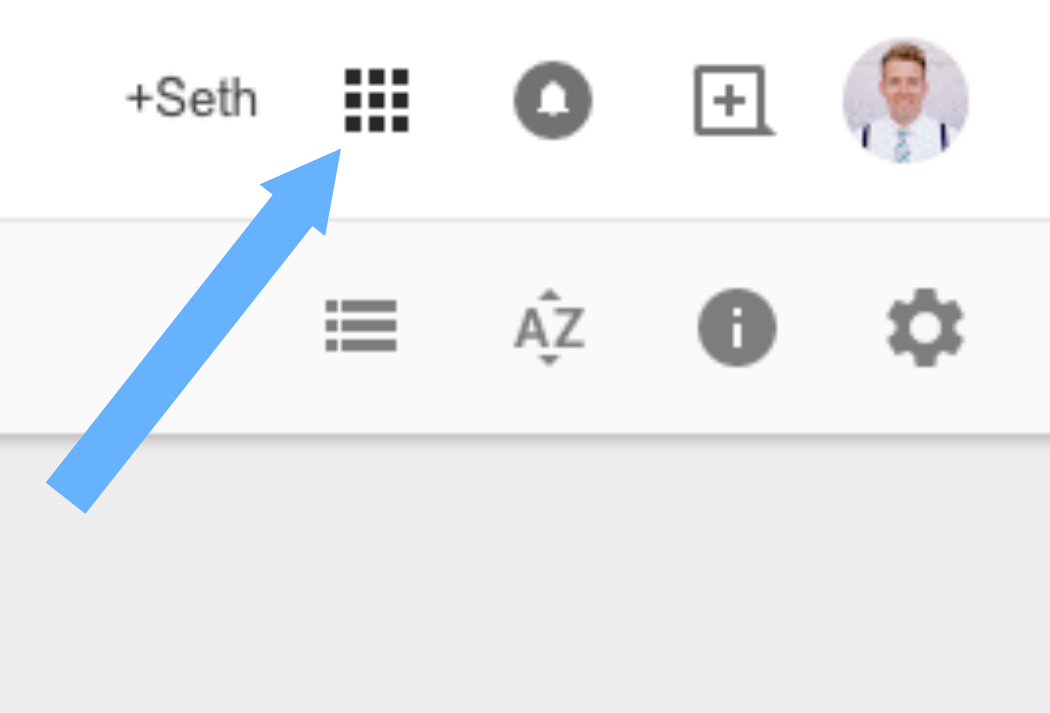
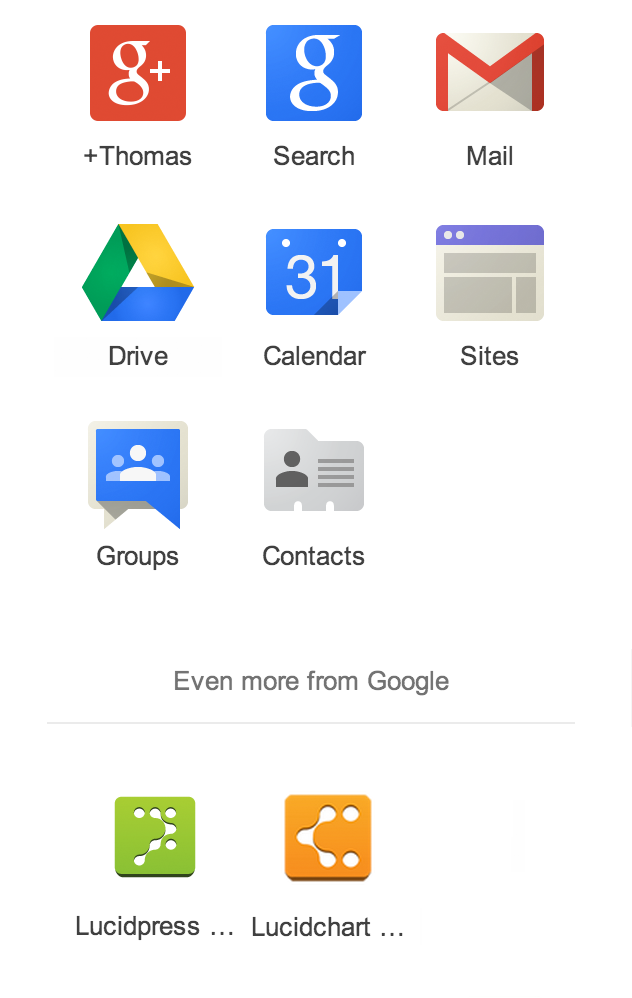
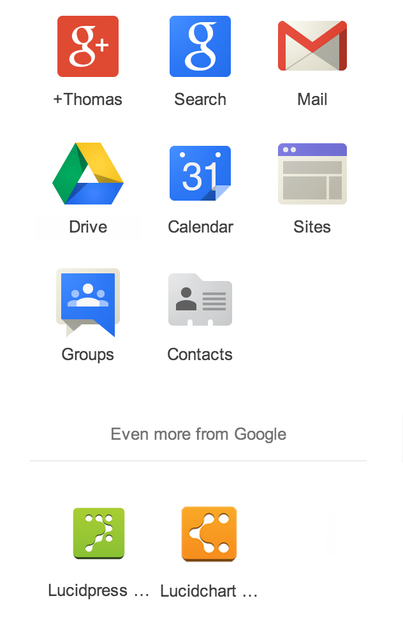
2. From within your BU Google Apps account, click the 3x3 app launcher icon (shown below), then click “more” and select Lucidchart. Note that you must be within another Google app such as Google Drive for Lucidchart to appear on this list; Lucidchart will not appear from a Google search page, even though the 3x3 app launcher is there.

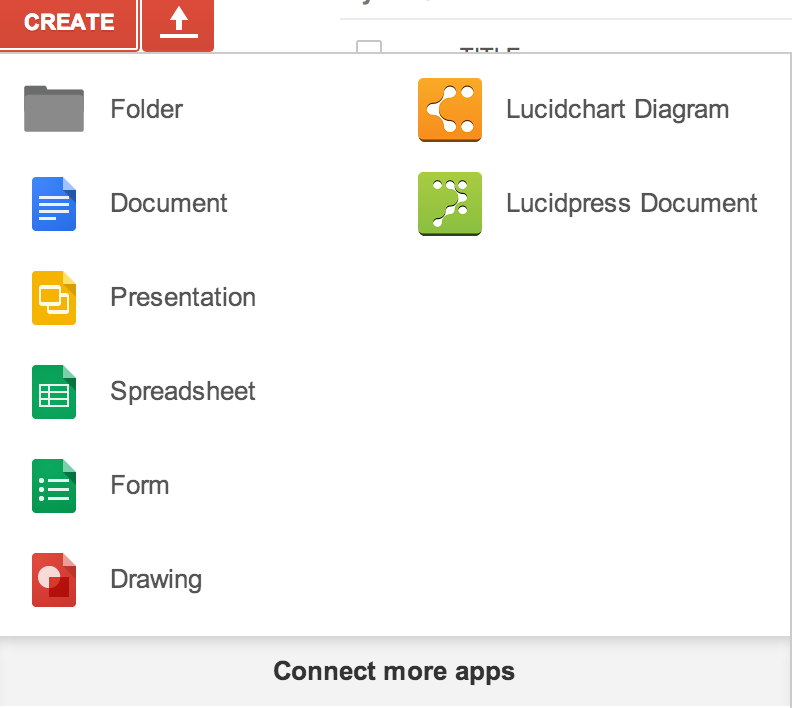
3. Create a new chart directly from Google Drive by clicking Create and selecting Lucidchart.

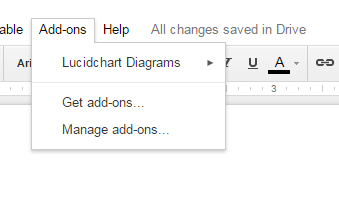
You can insert a diagram directly into a Google document via the Lucidchart add-on.
Content
Logging in with Microsoft
To log in to Lucidchart using your Microsoft account, follow these steps:
- Go to the Lucidchart login page and click the "Log in with Microsoft" button. The page will redirect you to the Microsoft login page.
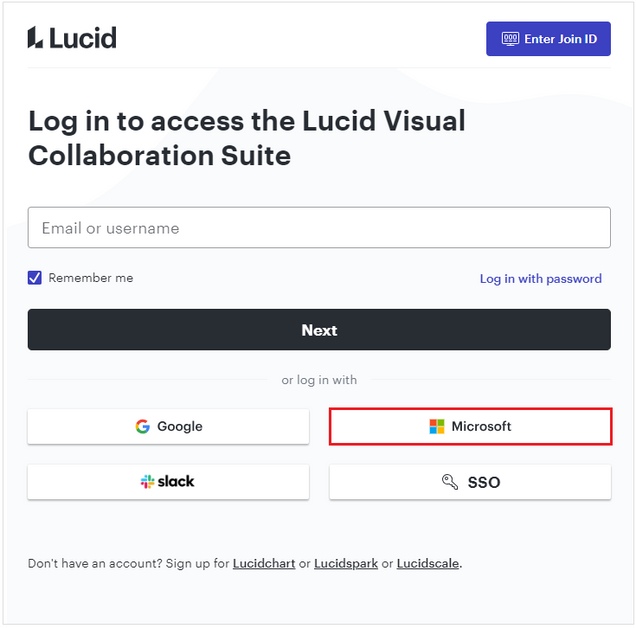
- Enter your Microsoft credentials (email ID and password) and click "Sign in."
If your Microsoft account is associated with a Lucidchart account, you will be automatically logged in to Lucidchart. If not, a message will appear prompting you to create a new Lucidchart account.
Shape Libraries
Lucidchart provides many different pre-set diagramming solutions for a variety of possible use cases. Browse them here.