
About Forwarding
Important:
Due to recent changes in email security policies from Google, Yahoo, and Microsoft, automatic forwarding of email from your BU email account to another email provider may no longer work and is no longer recommended.
These providers now check that the sender in the original forwarded message matches the message received. For example:
-
You receive an email from your doctor (doctor@yahoo.com) to your BU inbox (user@bu.edu).
-
You have auto-forwarding set to send to user2@gmail.com.
-
Gmail expects the original sender (doctor@yahoo.com) to match the sender received. Because the forwarded message will appear from user@bu.edu, Gmail will likely drop it.
Recommendation: Use only one email account to process your mail. Over time, these vendors will increasingly throttle or drop forwarded mail.
If you want to forward your Office 365 email to another account, follow the steps in the Forwarding Instructions section below.
Before you do, please review the information in Why Forwarding Isn’t Recommended for Current Employees.
Why Forwarding Isn’t Recommended for Current Employees
Using Office 365 Outlook directly provides seamless integration between your calendar and email, making it easy to send and accept meeting invitations. It also offers centralized mail filtering and a unified contacts list—both available from any fully Office 365–compliant email program.
Forwarding Instructions
To set up email forwarding in Office 365 Outlook:
Log in to your Exchange Online account at http://outlook.office365.com/
- Click the Gear icon in the top right corner.

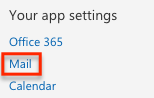
- Under Your app settings, click Mail.
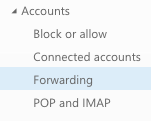
- Under Accounts, click Forwarding.
- Select the Start forwarding option, and enter the email address you want your mail to be forwarded to.
- If you want to keep a copy of your mail on the Exchange server, check the "Keep copy of forwarded messages" option.
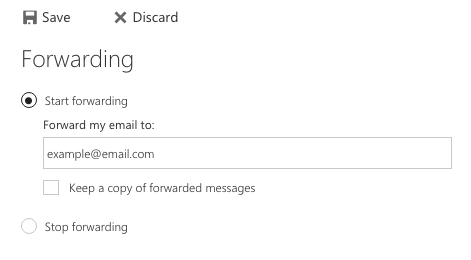
Note: To forward to BU Google Mail, use login@gmail.bu.edu as your forwarding address, where login is your username. - Click Save.
What about spam?
Mail that goes through the BU gateway is filtered. In addition, you can configure an additional level of spam filtering on your account, if you wish to.
Please note that BU is not in control of forwarded mail once it leaves Exchange and goes on to Gmail. Gmail has its own layer of spam filtering criteria that you should work with through the provided interface. If you are forwarding mail and you find that messages sent to login@bu.edu are not getting through, check your Gmail spam/bulk/trash folder to make sure they didn't get filtered on the Gmail side.
Where should I set my vacation/auto-reply?
When you opt to forward mail off of Exchange, you should then work with mail in whatever framework is provided by the account you are forwarding to. For example, if you are forwarding to Gmail, you would need to use Gmail's "Vacation Responder" to set up your vacation/auto-reply messages (and not Automatic Replies on Exchange).