
If you would like to change the list of devices you use to log in with Duo Security, you can use the Device Management portal to add a new device or remove an old one. You can reach this portal directly at duomgmt.bu.edu, or by selecting Manage devices the next time you’re prompted to log in with Duo.
If you are already enrolled with Duo and selected the Remember me for 30 days option, you will not see the Duo prompt (or any prompt from Duo) for those 30 days. During this period, you can clear your cookies or try a different browser to bring back the prompt. You may also contact the IT Help Center for assistance managing your devices.
- Go to duomgmt.bu.edu and log in with your BU login name and Kerberos password.
- Verify your identity using one of your existing enrolled devices. You’ll then land on the Device Management page, where each enrolled device (security key, passkey, phone, etc.) appears as its own card.
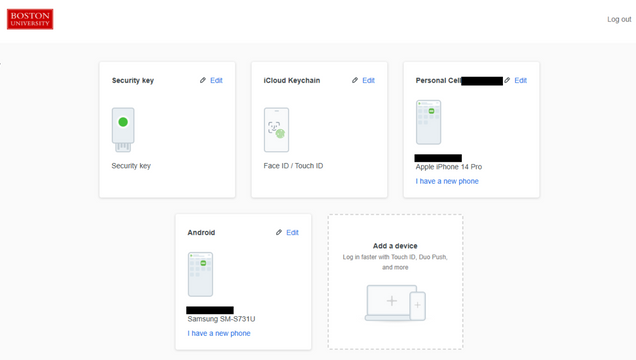
- The Device Management page allows you to add, replace, rename, or remove a new device.
- Depending on your device, you may also see Windows Hello (Windows) or Touch ID (Mac) as add-a-device options:
- Windows Hello: Not available for Duo Authentication for Windows Logon (RDP).
- Touch ID: Only works to verify from the same device it’s enrolled on.
- Depending on your device, you may also see Windows Hello (Windows) or Touch ID (Mac) as add-a-device options:
To add a new device, click the Add a device tile, then choose Duo Mobile, a security key, or a phone number as the new method. IS&T strongly recommends users to use Duo Mobile. 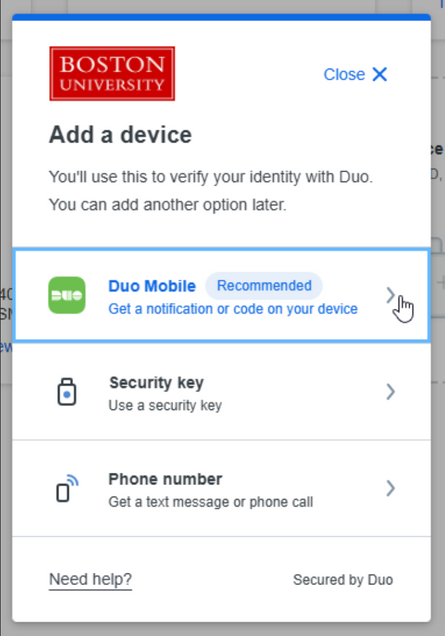 *To replace a phone you’ve upgraded, click “I have a new phone” on that device card and follow the same steps as adding a new phone number.
 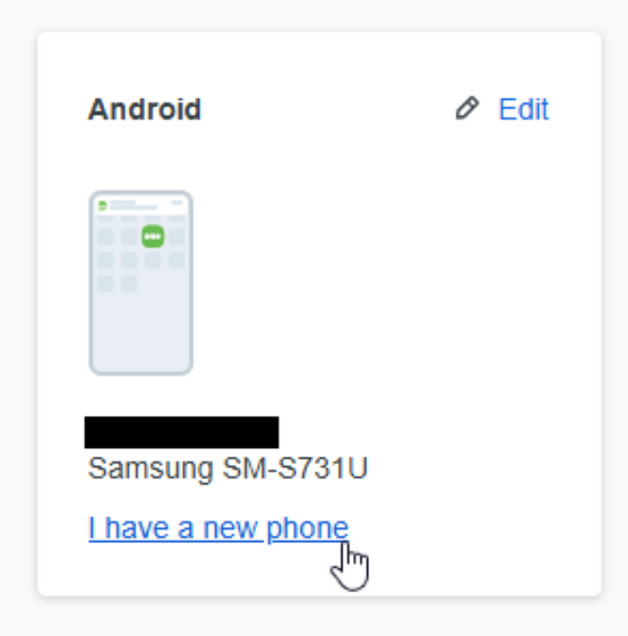 *To rename or remove, click Edit on that device card and choose the desired option option.
  4. Changes save automatically as you complete each step — there’s no separate Save button.