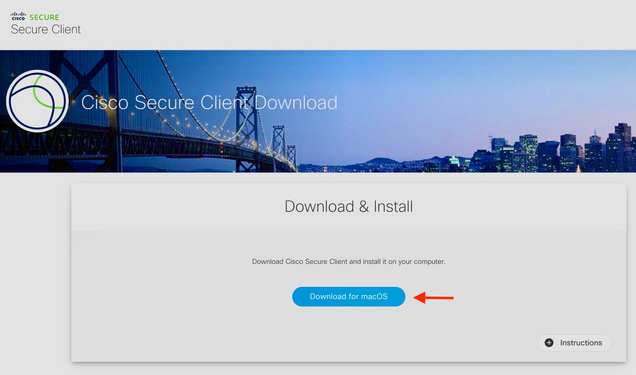
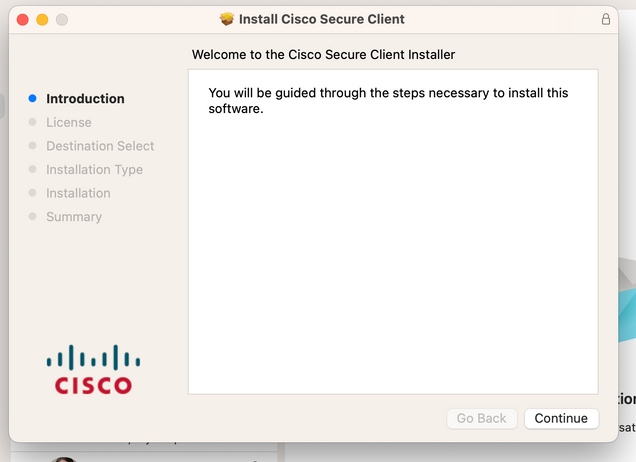
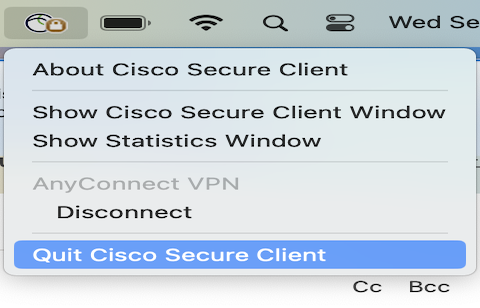
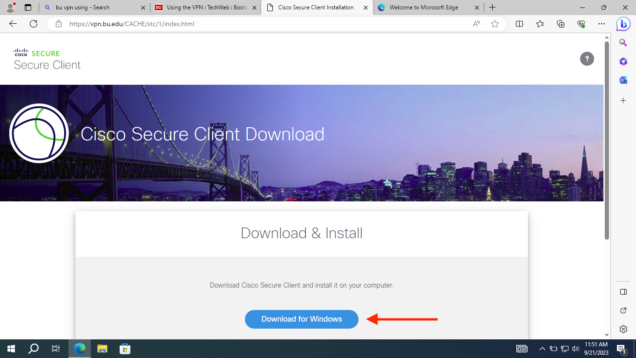
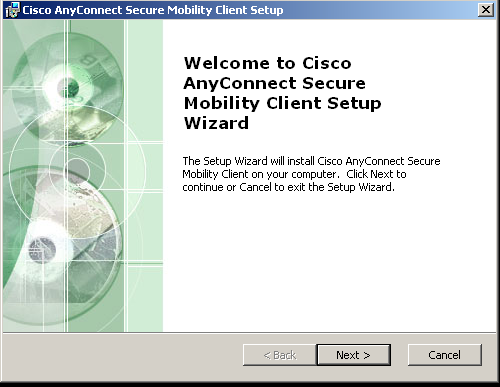
Virtual Private Network (VPN) is a convenient way to access network-restricted resources on the campus network that would otherwise be unavailable from off campus. In some countries, access to the University’s VPN service may be limited or restricted. To connect to the BU VPN you'll need to install the Cisco AnyConnect Secure Mobility Client. For Medical Campus resource access, please see the BUMC VPN instructions.
Duo Two-Factor Authentication is required of all clients when logging into the VPN.
Note: We no longer support built-in VPN programs on Mac or Windows, as they are incompatible with the Two-Factor VPN.
Below are the installation files and instructions that will walk you through downloading, installing, and launching the appropriate VPN client. Please choose the correct operating system:
iOS Device (iPhone, iPad)
- Download the Cisco AnyConnect Secure Mobility Client from the App Store on your iPhone.
- Once the application is installed, run the client to set up a connection. Click Add VPN Connection, use the following information when prompted, and then click Save.
- Description: BU VPN
- Server Address: vpn.bu.edu
- NetworkRoaming: ON
- Certificate: Automatic
- Connecton Demand : OFF
- Next, slide the AnyConnect VPN from OFF to ON and then use your BU login name and Kerberos password to log in.
- You will then be prompted for Duo Two-Factor Authentication.
Android Device (4.0 and above)
- Download the Cisco AnyConnect Secure Mobility Client from the Google Play Store on the Android Device.
- Once the application is installed, run the client to set up a connection. Click Add VPN Connection, use the following information when prompted, and then click Done.
- Description: BU VPN
- Server Address: vpn.bu.edu
- Certificate: Automatic
- Next, click the AnyConnect VPN on the main page and then use your BU login name and Kerberos password to log in.
- You will then be prompted for Duo Two-Factor Authentication.