Important:
Due to recent changes in email security policies from Google, Yahoo, and Microsoft, automatic forwarding of email from your BU email account to another email provider may no longer work and is no longer recommended.
These providers now check that the sender in the original forwarded message matches the message received. For example:
-
You receive an email from your doctor (doctor@yahoo.com) to your BU inbox (user@bu.edu).
-
You have auto-forwarding set to send to user2@gmail.com.
-
Gmail expects the original sender (doctor@yahoo.com) to match the sender received. Because the forwarded message will appear from user@bu.edu, Gmail will likely drop it.
Recommendation: Use only one email account to process your mail. Over time, these vendors will increasingly throttle or drop forwarded mail.
Email Forwarding
The new self-service Update My Personal Information application allows BU community members to easily change their email forwarding settings. The changes made through the app will override any email client-specific settings and help consolidate email destinations. Possible forwarding locations include: BU Google, Office365 Outlook, or a personal email address.
How to change your email forwarding settings:
- Please go to the Update My Personal Information website here.
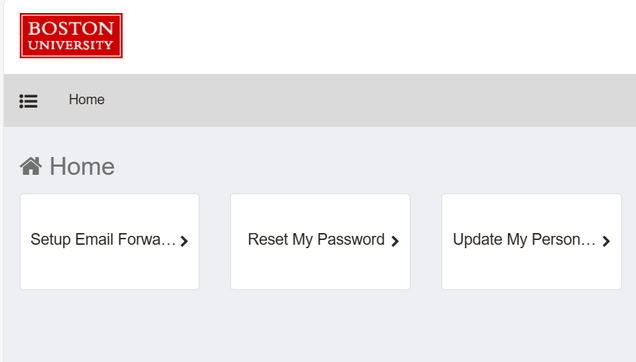
- Select the “Setup Email Forwarding” tile.
- Select the dropdown menu underneath “Please select preference for email forwarding”.
 The dropdown will show you the available options for where your mail can be delivered. Here are descriptions of the options available:
- Default – This is the default email forwarding settings for all first time Update My Personal Information clients which can have various meanings. If you are first time client, the default is your current email forwarding settings. If you are not a first time client of the email delivery feature, switching your delivery option back to default will send your emails to go to the default mail forwarding option for your affiliation type. For students, this means BU Google Mail; for employees, this means Exchange/Outlook.
- Personal Email Address – This will forward your BU emails to your personal email address that you have inputted in the “Update my Personal Information” tile.
- BU Google Mail: This will forward your BU emails to your BU Google inbox which can be accessed at bu.edu/google or directly at Gmail.
- Exchange: Available to BU employees. This will forward your BU Emails to your Outlook Office365 inbox which can be accessed here.
- Click on the “Submit” button at the bottom of the page.
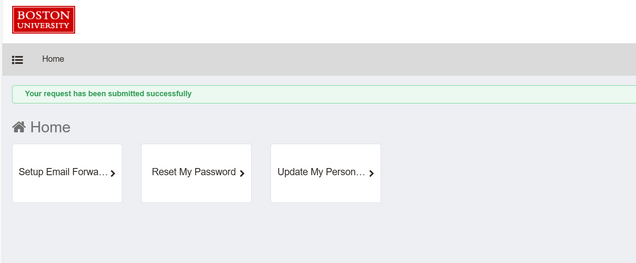
- If your request was successful, you will be redirected back to the homepage and see a green message that says “Your request has been submitted successfully”.