
In addition to accessing BU Google Mail with any web browser at www.bu.edu/webmail or www.bu.edu/google, you can also configure desktop and mobile device clients to use BU Google Mail using the steps outlined below. Once your desktop or device client(s) are set up to use BU Google Mail, any action you take in your mail reader will be synced to your Google account.
Note: BU Google Mail +Apps will require the use of Duo Two-Factor Authentication. To enroll and for more information visit: https://www.bu.edu/tech/support/duo/duo-for-google-apps/
Account Information
Your BU Kerberos password will allow you to access BU Google Mail with your desktop and mobile device clients. However, those who created a BU Google Apps account prior to August 30, 2011 should review this additional information:
- If you had set up your BU Google Apps account prior to August 30, 2011 but did not create a "Google Sync password," you will need to sync your BU Kerberos password with Google in order to use it to access BU Google Mail via a desktop or device email client.
- If you had set up your BU Google Apps account prior to August 30, 2011 and you had also set up a "Google Sync password," you can continue to use the Google Sync password. However, if you change your BU Kerberos password, you will need to make sure that the password setting in any desktop device or client you are using is modified to use the BU Kerberos password instead of the Google Sync password. The Google Sync password is no longer required.
Configure your Client
NOTE: Google ended support for “Less Secure Apps” on May 1, 2025. You will be unable to add Google Mail to any mail reader that only uses a username and password for authentication. You must instead use an application that supports OAuth authentication.
If you are using a recent and up-to-date Mail reader application such as Mac Mail or Outlook, it will support OAuth via a “Sign in with Google” option when you first setup your mail account.
A. Mobile Apps
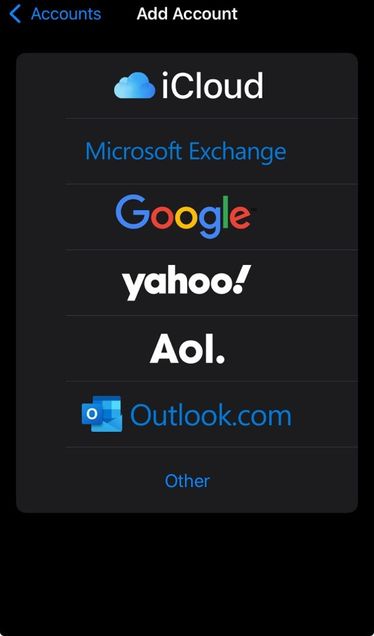
When setting up Google Mail on either Apple or Android phones, you will be prompted to choose a mail provider. Please choose Google from your provided options.
 |
 |
| Apple iPhone Mail Setup | Android Phone Email Setup |
B. Desktop Apps
Depending on your mail reader app and version your settings may look different. Images provided are only for example.
Outlook for Mac:
1. Enter your BU email address. Click Confirm. Do not opt for manual set up of “Create a new account.”

2. On the next screen do not enter any information. Click “Not Exchange?” in the top-right corner. A new window will appear.
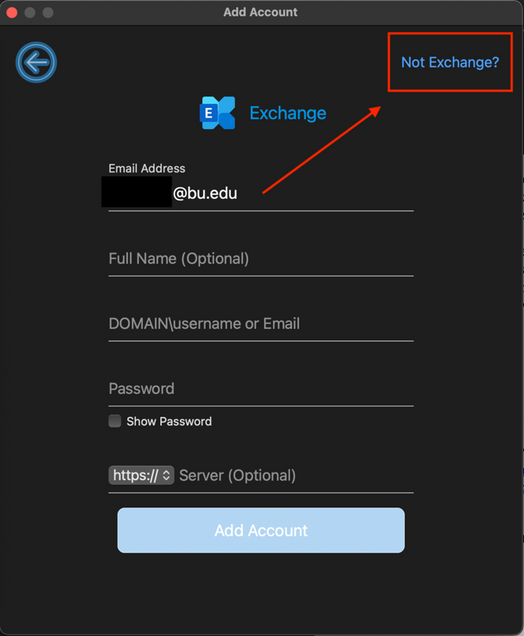
- On the next screen choose “Gmail”. A browser window open and present you with BU’s login screen. Use your account credentials to sign in. When you are done you will be redirected back to Outlook to complete setup.

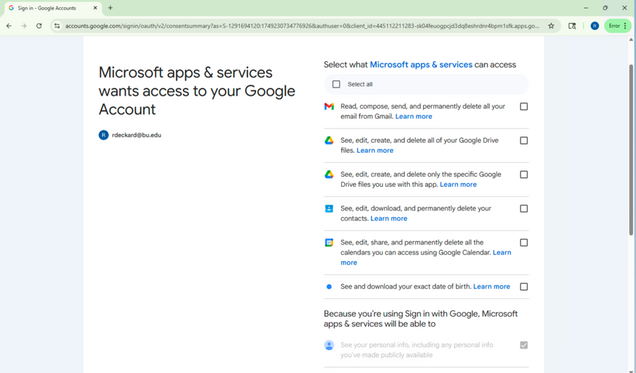
- You may be prompted to allow Outlook or Microsoft to access your Google account. Review these permissions before proceeding.
Mac Mail:
When setting up a new mail account you will be prompted to choose a provider. Choose Google from this list and follow the on-screen steps.

New Outlook on Windows:
- Enter your email address:

- Choose Gmail from the list of options:

- You will see a screen telling you that the sign in is taking you to Google’s sign in page. Your browser will open and prompt you with BU’s sign in page. Sign in with your BU credentials and follow the on-screen prompts to setup your account.


- During the sign-in process, you may be prompted to allow Outlook or Microsoft to access your Google account. Review these permissions before proceeding.

WARNING: If after choosing “Google” or “Gmail” you see a screen requesting that you enter IMAP information such as a server, username and password, your version of Outlook does not support Google sign-in. Please update your application or select a different mail reader.
Setting up Thunderbird (Mac or PC):
Mozilla Thunerbird is a popular third-party mail reader app. As of June 2025, it does not support Google Sign in. However, Thunderbird does have the ability to use OAuth with Google Mail.
Please see Mozilla’s instructions here: https://support.mozilla.org/en-US/kb/thunderbird-and-gmail
An Application or Service Not Listed Here:
If you are using an application not listed here that does not have the ability to connect to Google via OAuth, please open a ticket by writing to ithelp@bu.edu.
NOTE: When you send mail to yourself in BU Google Apps via a desktop or device client, the message will only appear in your Sent Mail folder and not the Inbox.