
Submitting MyMedia videos to Blackboard Assignments (Original Course View)
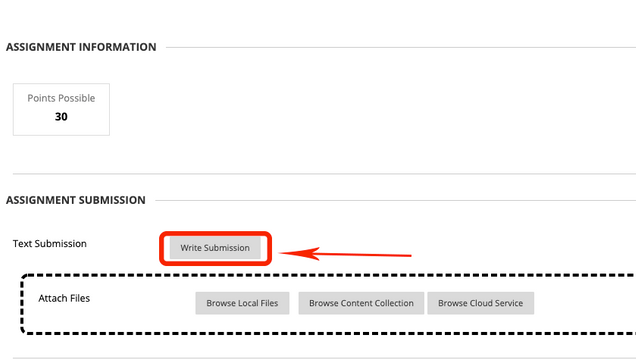
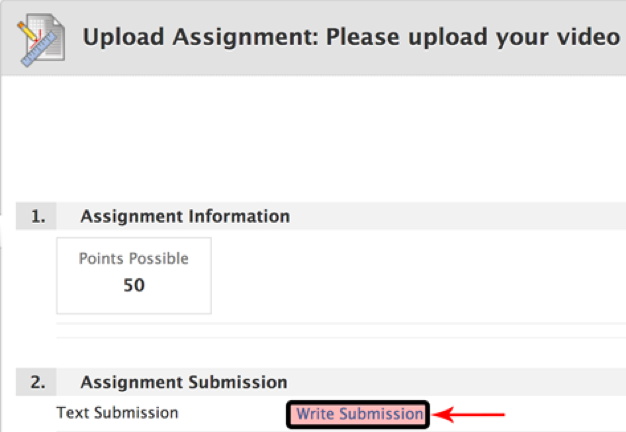
- Navigate to and select the Assignment created by your instructor
- Select the Write Submission button under Assignment Submission.
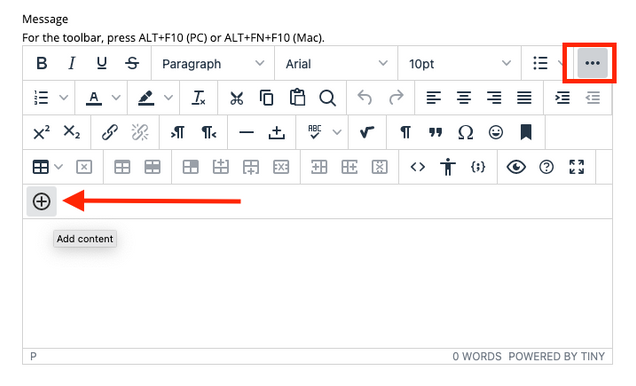
- Select the 3 dots on the toolbar, which will extend the toolbar.

-
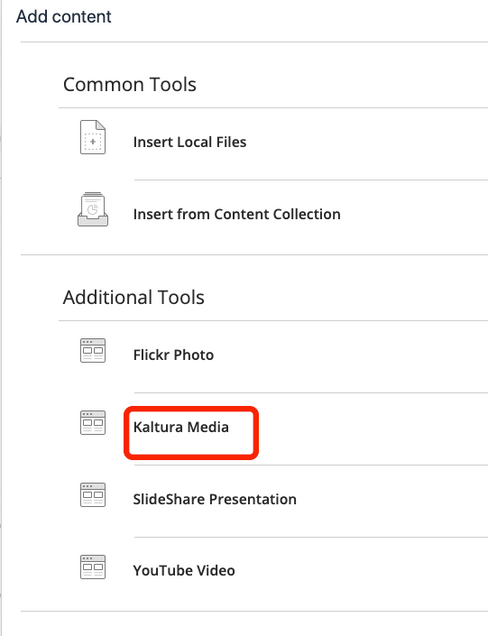
Select the PLUS icon ( + ).

- Chose Kaltura Media to access your video from the repository.
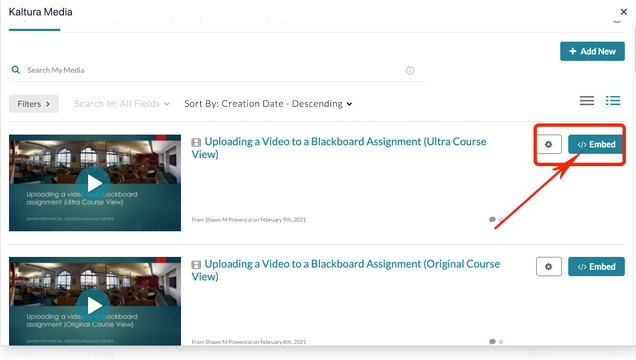
- Chose the Embed button of the video you wish to add to the assignment.
Submitting MyMedia videos to Blackboard Discussions (Original Course View)
- Navigate to the Discussion Board
- Locate the thread you wish to post a video to
- Create a new thread or reply to an existing comment
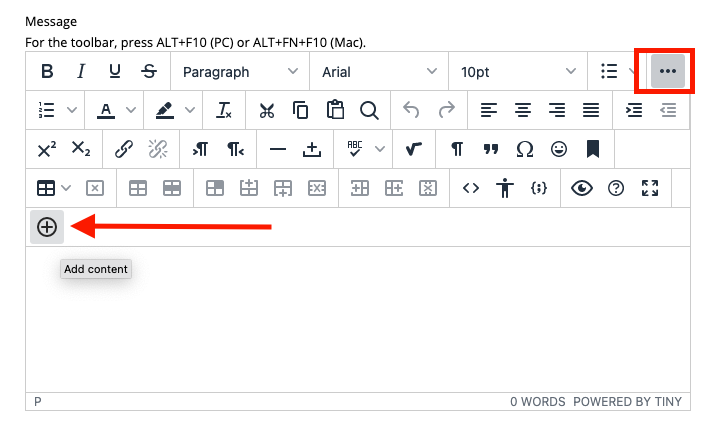
- In the Message area, select the 3 dots on the toolbar, which will expand the toolbar. Select the PLUS icon ( + ).
- Chose Kaltura Media to access your video from the repository.
- Chose the Embed button of the video you wish to add to the discussion forum
Submitting MyMedia videos for Blackboard Assignments (Ultra)
To see how to submit MyMedia videos for Blackboard assignments in Ultra, please click this link: https://www.bu.edu/tech/services/teaching/instructional-video/my-media/getting-started/my-media-faqs/submitting-a-video-assignment-using-my-media-blackboard-ultra/
Submitting MyMedia videos to Blackboard Discussions (Ultra)
If your professor assigns a discussion post with a video using MyMedia in Blackboard Ultra, please follow these steps.
- Log into Blackboard using your BU username and password. Select your course from the courses tab.
- Navigate to the discussion assignment that your professor is requesting a video submission for.
- Click the text box under Responses, use the “Insert Content” (+) button inside of the editor, click Content Market, and find Kaltura Video in the list to open the MyMedia Repository.

- On the page that appears, you can select existing media or upload a new video to select by clicking Add New and then Media Upload. To attach the video to the assignment, you must click the Embed button.
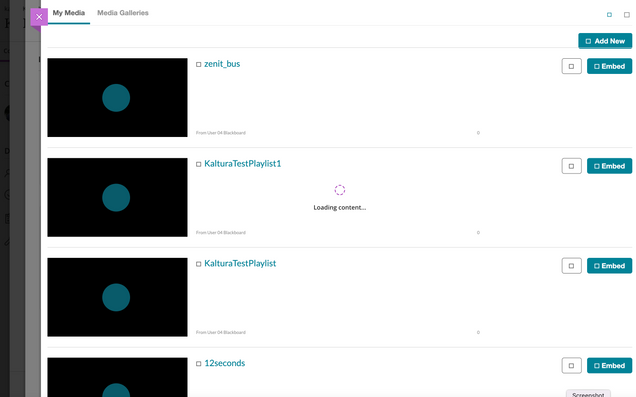
- Create a Display name for the discussion post video.

- You will see your video discussion post embedded in the text box.
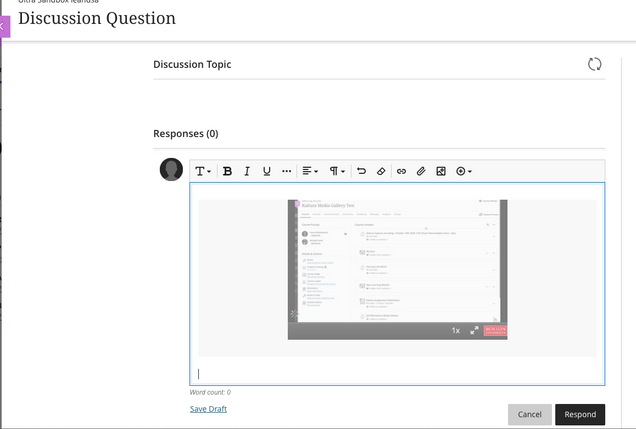
- When you are ready, hit the Respond button in the bottom right hand corner. You will see your post added to the discussion thread.

Be sure you have the proper permission to share any media you upload. Review more about copyright basics here.Copyright Basics
Troubleshooting
A common error results in an “access denied” message for students uploading assignments or loading the MyMedia interface in Blackboard. The most common cause of this is an outdated browser or operating system.
Resolution
1. Update the browser to the latest version to ensure compatibility with Blackboard and Kaltura MyMedia.
2. Verify that the computer’s operating system is updated to the latest version to address potential security or connectivity issues.
3. Use Firefox as the preferred browser, as it is optimized for compatibility with educational technology platforms and offers enhanced security features.
Causes
This along with other things might cause the issue The “Access Denied” error with Kaltura in Blackboard on Chrome/Safari usually means your browser’s security settings are blocking necessary connections, especially third-party cookies or scripts; the fix involves enabling third-party cookies, allowing JavaScript, clearing cache, disabling extensions, or sometimes just logging out/restarting your browser to refresh the connection. For Safari, you’ll need to turn off “Prevent cross-site tracking,” while Chrome often needs third-party cookies allowed.