All BU Google accounts are subject to storage quotas. This page provides information about storage limits, checking your usage, available storage options, and data migration resources
FAQs
To expand the question answer, click the  button.
To collapse the answer, click the  button.
How much storage will I have on my BU Google account?
All BU Google accounts are subject to storage quotas.
Google deems “storage” as the total amount of data on Drive, Gmail (including attachments), Shared Drives, and Photos.
Storage quotas are as follows:
- Faculty/Emeritus accounts: 150GB
- Student accounts: 15GB
- Staff accounts: 15GB
- Retiree accounts: 15GB
- Affiliate/Departmental accounts: 15GB
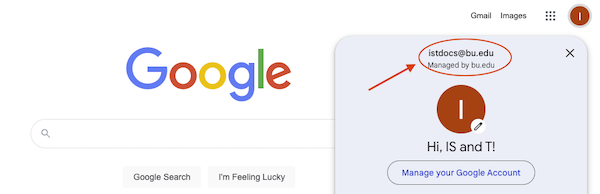
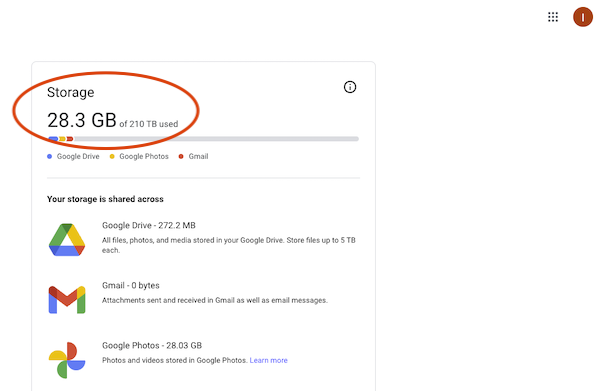
How do I determine how much storage I am using on my BU Google Storage?
How do I determine how much storage I am using on my Shared Drive?
To check how much storage your Shared Drive is using against your quota:
- Visit https://drive.google.com
- Sign in with your BU account
- Click on Shared Drives and then select your drive
- Click the “i” / information icon in the top-right corner of the screen

- A sidebar will appear from the right side of the screen. There is a storage used counter that shows total drive size against quota applied.

To check how much storage your My Drive is using against your quota:
- Visit https://drive.google.com
- Sign in with your BU account
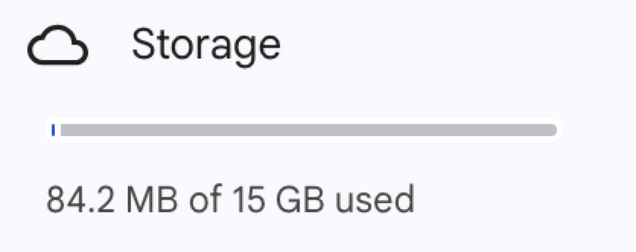
- At the bottom of the left-hand navigation menu there is a counter that shows quota used against total quota.
Are there any other storage options for students?
There are several cloud storage options available to ensure that your data is backed up and secure. Visit our Digital Storage Options for Students page to learn more about BU provided and personal (non-BU) storage options such as Google One, Microsoft OneDrive and Dropbox.
Students may also request a BU Dropbox account, available on a limited basis, and are best for group projects, classroom collaboration, and research. Email ITHelp@bu.edu to inquire about how to receive a BU Dropbox account.
This CNET article with a comparison chart and recommendations may help with your research for personal cloud storage options.
Are there any other storage options for faculty and staff?
Visit the TechWeb Storage Options page to learn more about storage available to faculty and staff.
Additional Google Storage
Additional Google Storage is available for faculty and staff to purchase through IS&T.
Cost
Google storage will be charged at a prorated yearly price amount based upon the following prices based on a July 1st renewal schedule.
| Storage Amount |
Annual Cost |
Prorated Monthly Cost |
| 1 Terabyte |
$150 |
$12.50 |
| 2 Terabytes |
$300 |
$25.00 |
| 5 Terabytes |
$750 |
$62.50 |
| 10 Terabytes |
$1,440 |
$120.00 |
The annual cost for additional storage is based on a 12-month period starting from July 1st of each fiscal year. Additional storage purchased during the year will be prorated to align with the July 1st renewal date.
Ordering Additional Storage
To order additional storage, email ithelp@bu.edu with the subject line: Additional Google Storage. Be sure to include your Google Account or Shared Drive name, and the amount of storage you need.
Upon submission of your service request, you will be contacted by a member of the Systems Operations team via Service Ticket with further details about your purchase of additional storage.
How do I download all my Google Data to my local hard drive on my PC?
Please note this is the preferred method for downloading your local data to a hard drive
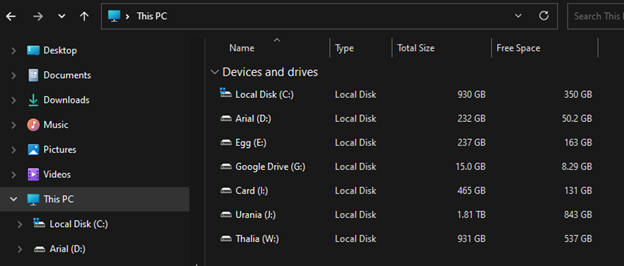
Please be sure that your local disk or attached Hard Drive has enough space to accommodate that amount of data you’re downloading.
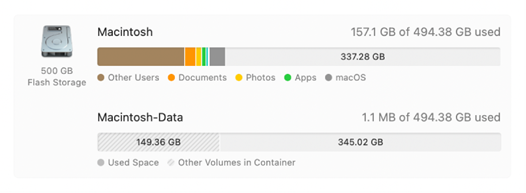
First check your local Hard Drive space:
- Open Windows explorer (Yellow folder icon or Windows key + E). Navigate to This PC.
Set your view to Details.
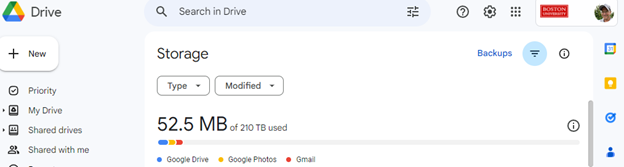
- Check the amount of data you have on Google Drive. Be sure that the icon in the upper right corner has the BU logo.
- Once you have confirmed you have sufficient space to accommodate all of the files, go to the Google Takeout page.
- On the Google Takeout page, choose Deselect all.
- Select Drive and Google Photos. For most users, these two options are the most commonly used data categories.Please Note: Depending on how you use your Google storage, there may be other categories relevant to you. Please check off additional categories if you have stored data there.
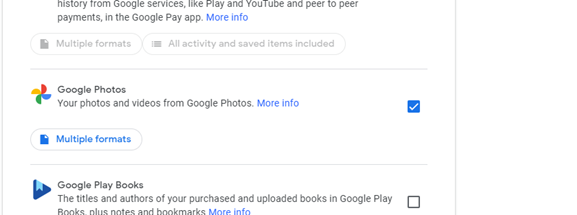
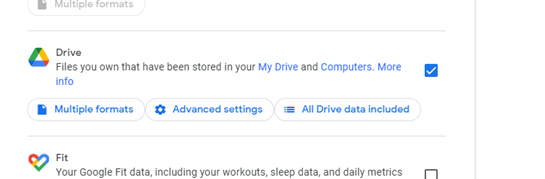
- Scroll to the bottom and click Next Step.
- Leave the defaults and click Create export.
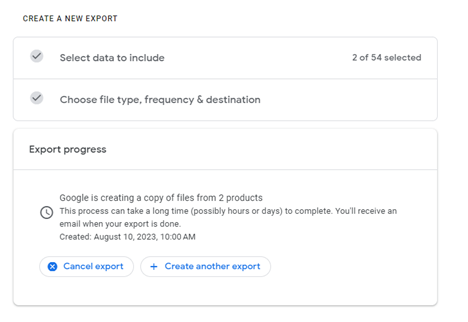
- Google will send an email to your BU Gmail account once the data has been prepared to be exported.Once you have been notified that your data has been prepared, click the included link in your email to download your zip file(s).
How do I download all my Google Data to my local hard drive on my Mac?
How do I migrate data from a personal Google Drive to Shared Google Drive?
Visit our our step-by-step data migration guide for clear instructions on transferring your data from a personal Google Drive to a Google Shared Drive.
How do I migrate data from a personal Google Drive to BU Network Storage?
Visit our our step-by-step data migration guide for clear instructions on transferring your data from a personal Google Drive to a BU Network Storage.

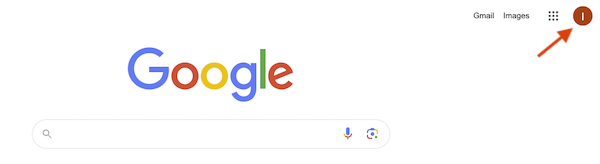

 in the sidebar. You may need to scroll down.