
Configure Apple Mail for Office 365
Note: If you have just been migrated to Exchange Online, we expect you will need to delete and re-add your account to Mac Mail using the following steps.
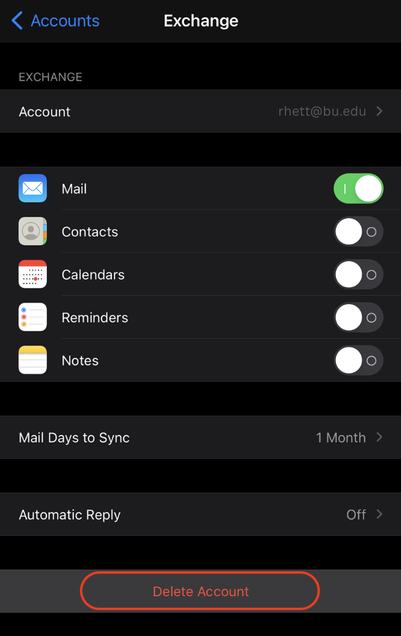
To delete the existing account:
- Go to your iPhone or iPad’s Settings.

- Scroll down and tap Apps > Mail > Mail Accounts

- Your account should be listed under “Exchange.” Click on “Exchange.”

- Press “Delete Account”
To add an account:
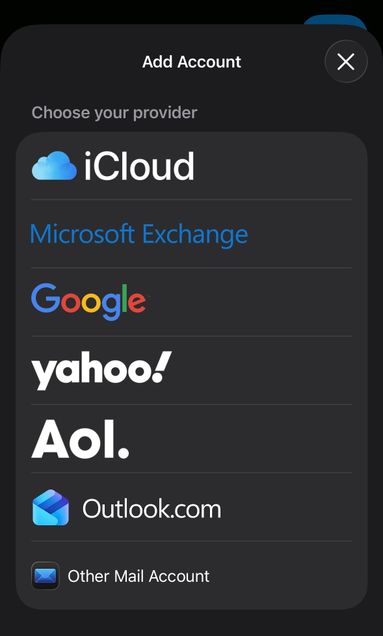
- Go to Mail > Add Account or go to Settings > Mail > Mail Accounts > Add Account
- Select Microsoft Exchange
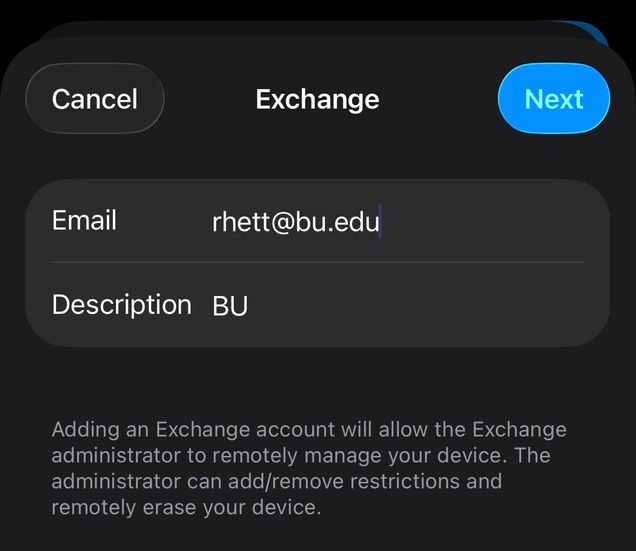
- Enter your Microsoft 365, Exchange, or Outlook email address and a description of your account. Tap Next.
Tap Sign In.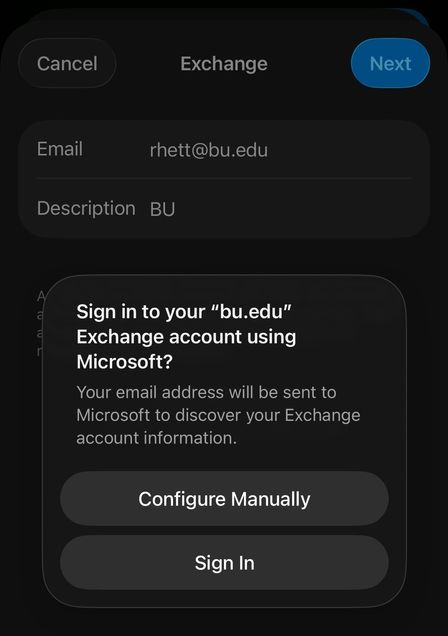
Note: Tap Configure Manually if you need to enter server settings. - Enter your BU email and password. Tap Sign in.

- The Mail app may request certain permissions. Tap Accept.
- Choose the services you want to sync with your iOS device and tap Save.

- Mail will set up your account, and begin to sync your mail.