
Please select your browser below and follow the instructions provided.
 Microsoft Edge
- Launch Microsoft Edge from your desktop or start menu.
- Determine if you want to clear the cache on the current device or all devices sync to your profile.
- Clear cache on the current device only: turn off sync in Edge (Settings > Profiles > Sync > Turn off Sync). Leave Sync on to clear the cache from all connected devices.
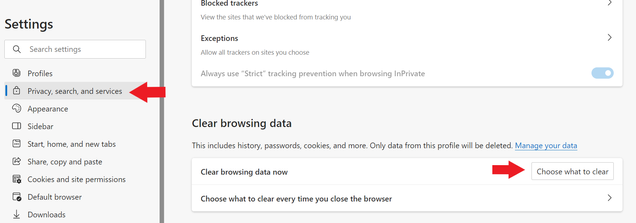 <
< - Next, open the menu and choose “Settings.”
- Select “Privacy, search and services” from the left menu. Scroll to “Clear browsing data” and click “Choose what to clear.”
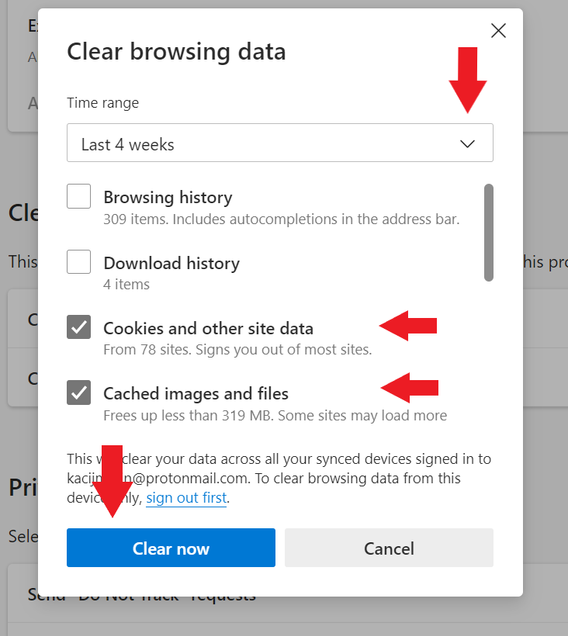
- Choose your desired time range and check “Cached images and files” and “Cookies and website data.” Click “Clear now” to confirm.

 Firefox Final Release Channel
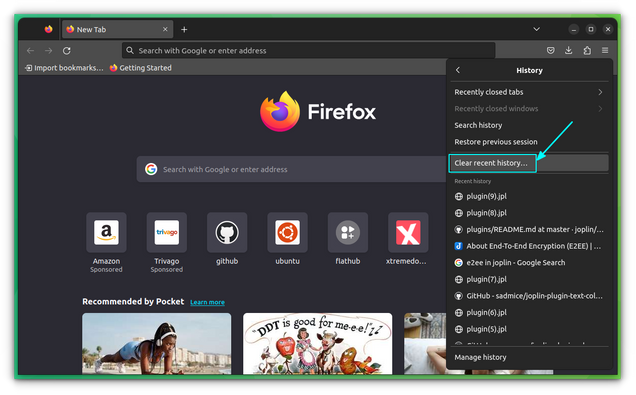
- Click the menu button (☰) in the upper-right corner of Firefox.
- Select History, then click Clear Recent History
- In the “Time range to clear” drop-down, choose Everything.
- Check Cache (add Cookies only if needed)
- Click Clear Now. Then close and reopen Firefox.

Note: Clearing the cache (saved website files) fixes loading or display issues. The step won’t sign you out. Avoid selecting Site Preferences unless you want to
 Google Chrome Stable Channel
- Launch Google Chrome from your desktop or start menu.
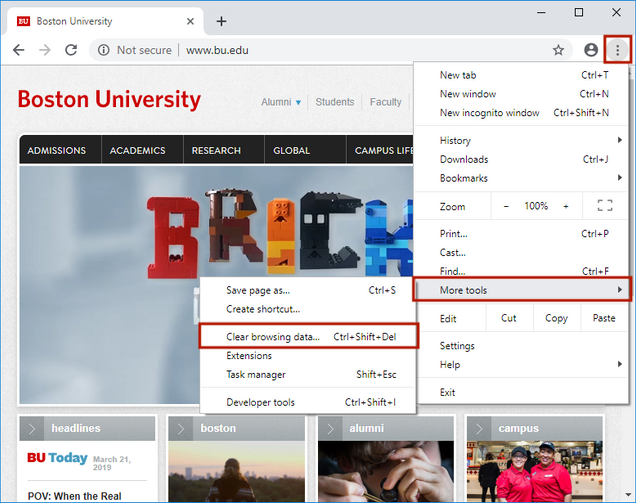
- Click the menu icon located in the upper right-hand corner of the browser window, then move your mouse over More tools and then click Clear browsing data…
- In the window that appears, ensure that you are on Basic (not Advanced) and ensure that All time is selected in the Time range drop down menu.
- Ensure that at least Cookies and other site data, and Cached images and files are checked.
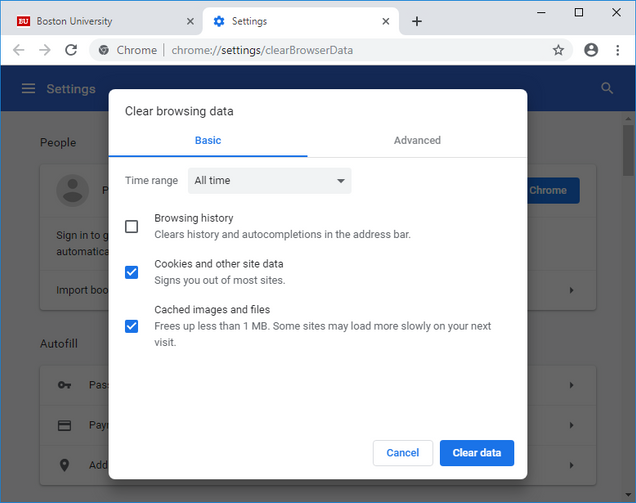
- Click the Clear data button.
- You can now close this tab or window.