
How to Edit a Presentation Online
The only editing done to a video online is adding, deleting, and rearranging slides and adding interactive activities.
Go to Library.
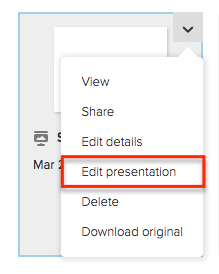
Move the mouse to the upper-right of the presentation you wish to edit. Click the drop down menu and click on Edit presentation.
Overview of Editor Screen:
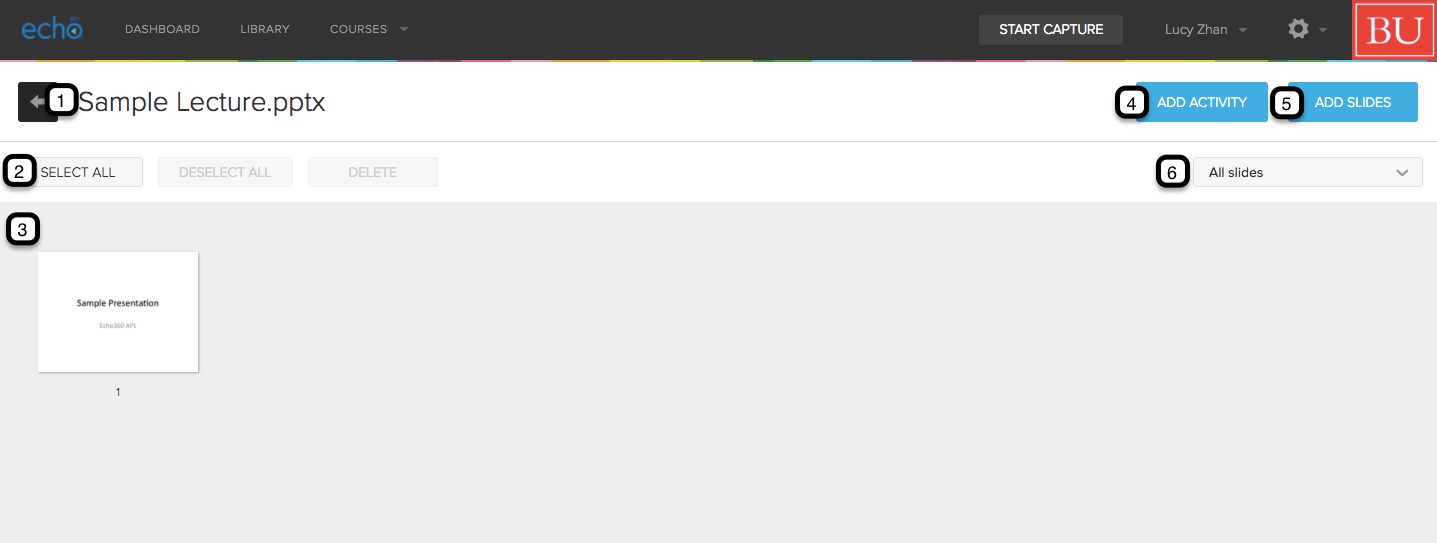
- Title and Back: Back arrow to go back to library. Display of title of presentation.
- Controls: Select all slides, deselect all slides or delete the selected slides.
- Slides: Thumbnail view of each slide.
- Add Activity: Click to add interactive activities to slides.
- Add Slides: Click to add additional slides to presentation.
- Filter: Drop down menu to choose which slides to show.
Adding Slides:
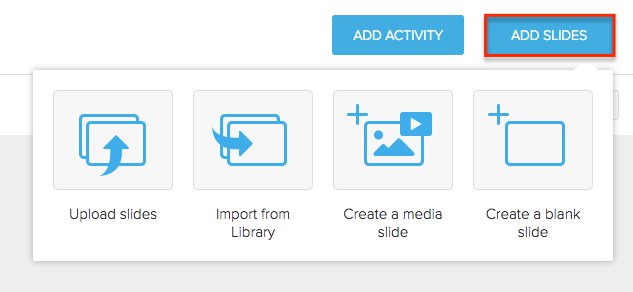
Select ADD SLIDES to receive drop down menu of options of slides to add.
Reordering Slides:
To reorder the slides, click on the slide you wish to move and drag it to the desired location.
Deleting Slides:
Delete a single slide by hovering over slide you wish to delete. Click on X near the upper-right.

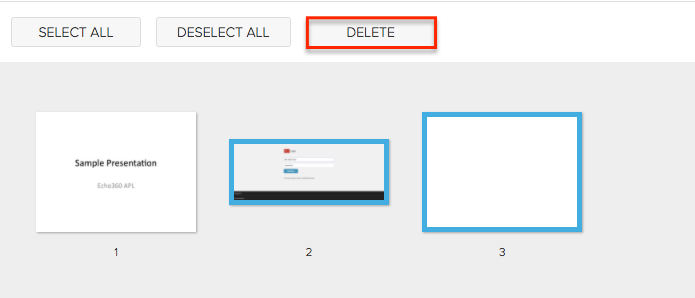
Delete multiple slides by holding onto Command key and selecting each slide you wish to delete. Press DELETE.
Adding Activity:
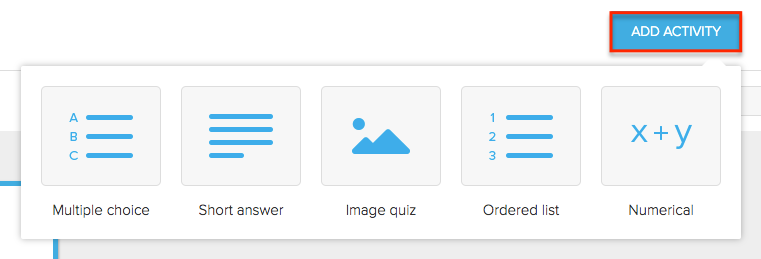
Select ADD ACTIVITY for a drop down menu of types of activities to add.
For more instruction on how to add activities to presentation.