Access Guide – Microsoft Windows
Access Guides
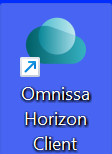
- Download and install the Horizon Client for your system.
- Open the software and select Add Server.
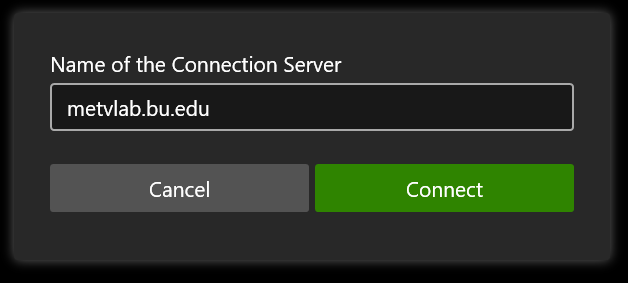
- On the “Name of the Connection Server” window, enter metvlab.bu.edu in the text field, then click Connect.
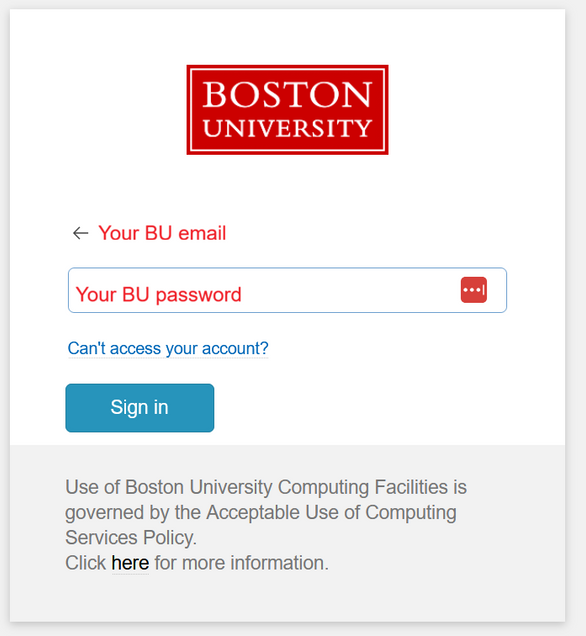
- Enter your BU username and password, and confirm the DUO 2FA prompt (if requested).
- If you have not set up your BU DUO two-factor authentication yet, see the instructions here: https://www.bu.edu/tech/support/duo/enroll-device/
- From the list of icons, select MET-REMOTE.
- On the login screen that follows, enter your BU username and password.
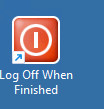
- When you have finished your session, you can use the Sign Out When Finished icon to end the connection.

This will automatically open your web browser and take you to the BU login screen.


If you find any issues, please contact us and include a screenshot of any error messages if possible.