Virtual Lab Saving Method – Horizon Client
NOTE: This saving option is only available to those users accessing the Virtual Labs through the Omnissa Horizon Client.
Table of Contents
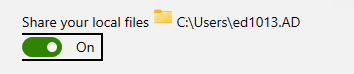
One time requirement: Check that you are sharing a folder with the Horizon Client.


Saving from Virtual Lab to Computer
NOTE: Make sure you are sharing a folder with the Horizon Client as described at the top of this page (in the One time requirement section).
-
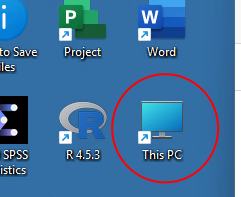
- From the VLab, open This PC.
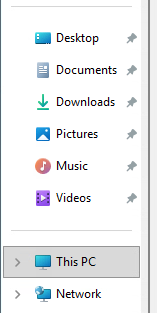
You may also do this from the File Explorer.
-
- In the “Network Locations” section, locate the drive with the name of your computer.

This drive represents the folder in your computer you shared. Any files you save here will be saved locally on your computer.

-
- Drag and drop the file from the Virtual Lab desktop to the desired location.

You have saved the file to your computer. You may view the file locally on your computer by navigating to the appropriate folder.

NOTE: For optimal performance, avoid opening files directly from this drive within the VLab.
Uploading Files to the Virtual Lab
NOTE: Make sure you are sharing a folder with the Horizon Client as described at the top of the page.
-
- From your local computer, place the file you want to upload to VLab in your shared folder.

-
- From the VLab, open This PC.
-
- Drag and drop the file to the Virtual Lab desktop.

The file is now in the Virtual Lab and you can work with it.
NOTE: For optimal performance, avoid opening files directly from this drive within the VLab.