Virtual Lab Saving Method – Web Browser
NOTE: This saving option is only available to users accessing the Virtual Labs through Omnissa Horizon’s web browser client.
Table of Contents
Saving from the Virtual Lab to Your Computer
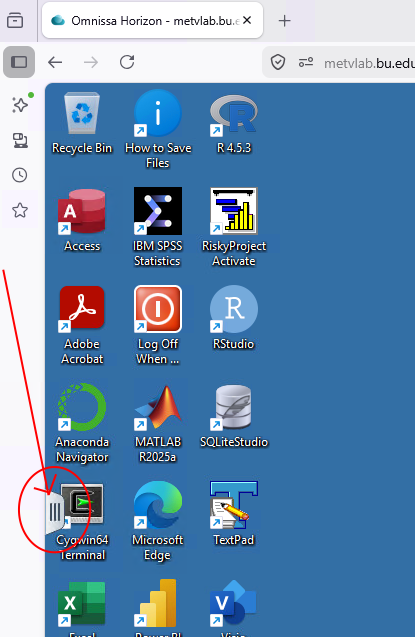
- Click the Menu Tab on the left of the screen.
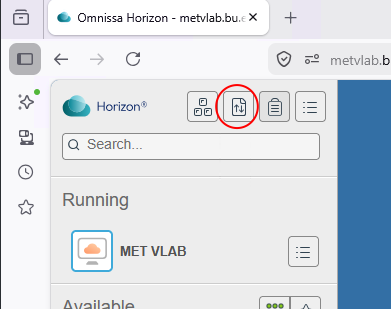
- Click the File Transfer icon in at the top of the menu.
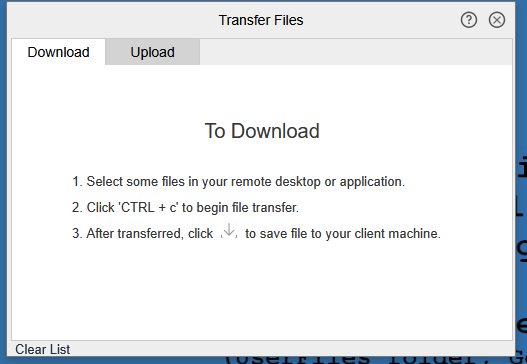
- In the File Transfer utility, select the Download tab.
- In the VLab, copy the file you wish to save with one of the following methods:
- Press CTRL+C on your keyboard.
- Right-click the file and select Copy.
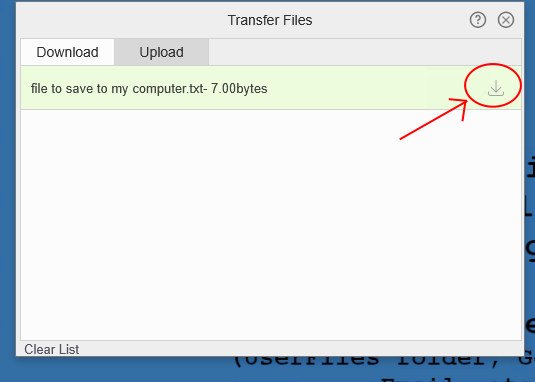
- Click the download icon to the right of the file name.
- Select the location in your computer where you want to save this file.
After copying the file, the file name will appear in the file transfer utility in green:
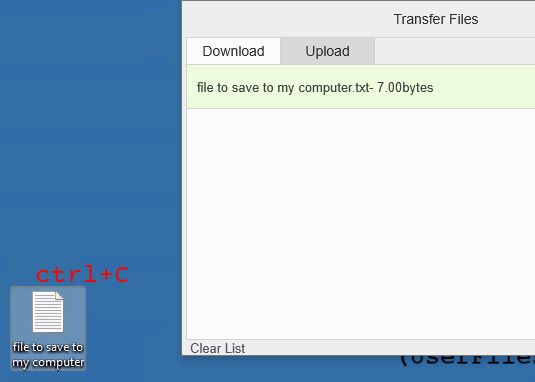
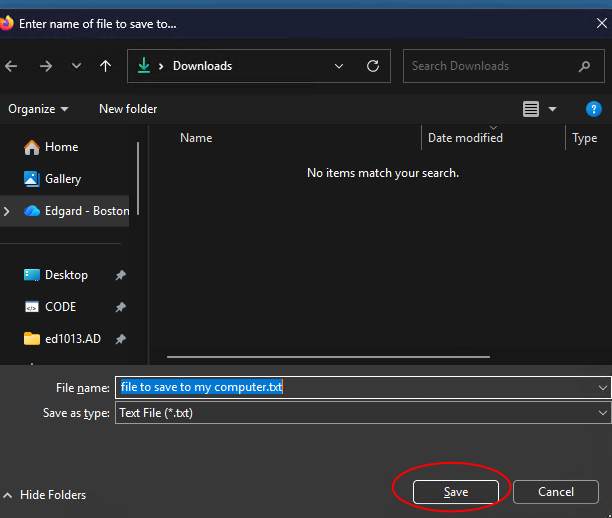
The file is now saved to your computer.

Upload Files to the Virtual Lab
- Click the Menu Tab on the left of the screen.
- Click the File Transfer icon in at the top of the menu.
- In the File Transfer utility, select the Upload tab.
- Click Choose Files, find the file you want to upload to the VLab, then click Open.
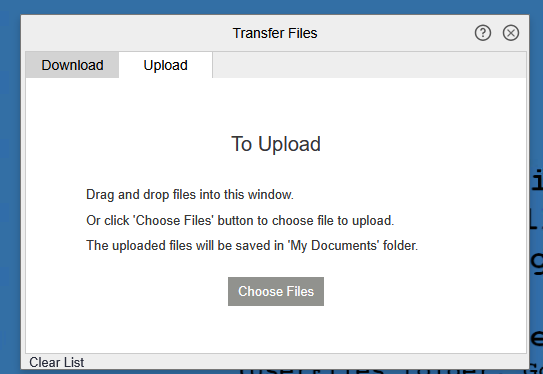

The filename you selected will turn green when the upload is complete.

Files are saved to the “Documents” folder inside the VLab. To find this folder:
- Open the File Explorer in the VLab.
- Click Documents in the left navigation menu.
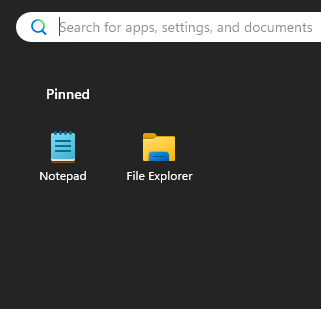
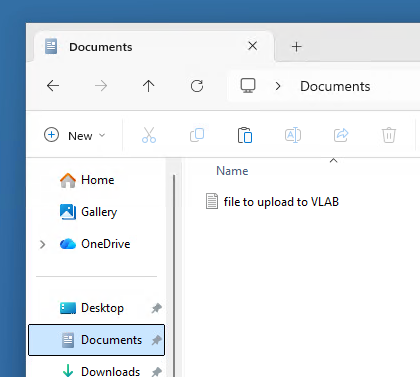
It may take a couple of seconds or minutes to update.
If you have any issues, please contact us for assistance.