
On This Page:
- Navigation
- Add A Professional Activity Manually
- Edit Existing Professional Activities Records
- Copy an Existing Activity
1. Navigation
Professional Activities Page
The My CV Professional Activities Module is used to collect and aggregate your professional/service activities. Navigate to your professional activities summary page by clicking Professional Activities in the Homepage.
 Note: Always enter an end date once a professional activity has concluded. A missing end date means the activity will continue to appear in every future FAR until one is added, this is intentional for ongoing roles like committee memberships, but can cause confusion if left blank on activities that have already ended.
The Professional Activities module allows you to add and view information about your professional/service activities in My CV. If any data is incorrect, manually edit the record to correct it.
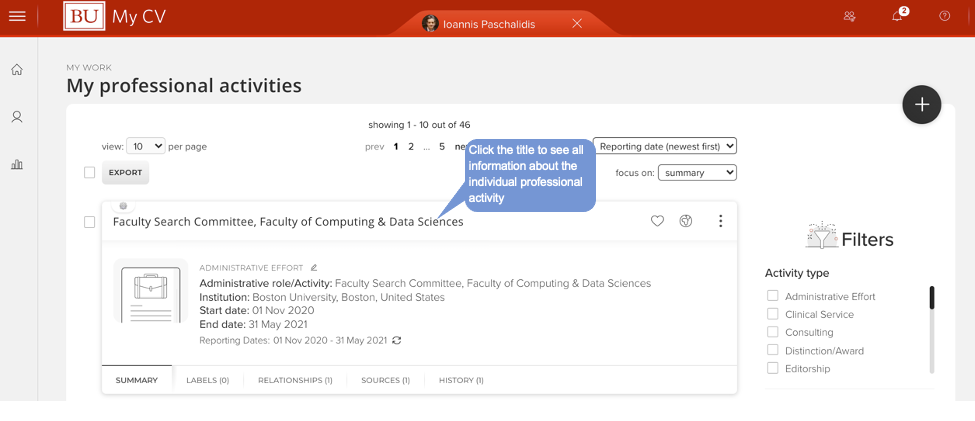
Detailed record view
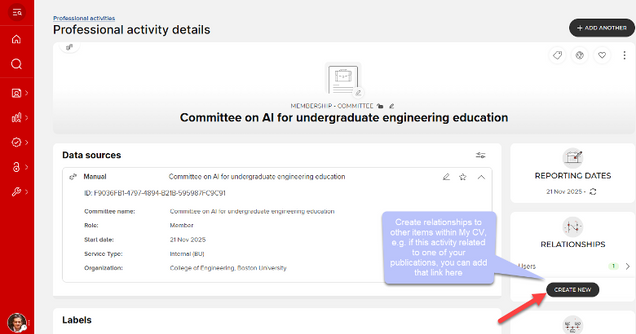
To get to the detailed professional activity record view for an individual item, click the item’s title. The detailed view shows you all of the data available for your record. From here you can:
- Add/edit BU co-contributors; for example if you co-led an event with a colleague, you can add them to your entry.
- Link the professional activity to publications, teaching activities, grants, or other professional activities in My CV.
- View the history of your record.
2. Add a Professional Activity Manually
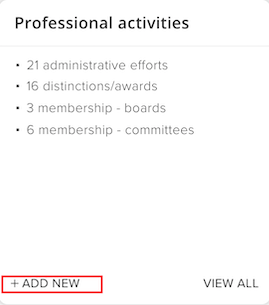 To manually add a professional activity:
1. From your Home screen, click the + ADD NEW button within the professional activities summary box.
Alternatively, navigate to your Professional Activities page by clicking Menu > Profile and Work > Professional Activities., and clicking ADD NEW ACTIVITY button ( ) in the top, right-hand corner of the screen.

2. From the pop up screen, select which type of professional activity you would like to add. The types of professional activities available to users will vary by school/college.

3. You will be taken to the data entry form. Complete the form and click save.
3. Edit Existing Professional Activities Records
You may edit a professional activity record at any time, to do that:
- Open the detailed view of the professional activity record you wish to change, by clicking on the bolded title.
- Click the Edit Record button.
- Save changes once you are finished.

4. Copy an Existing Activity
If you need to add a professional activity that’s similar to one you’ve already entered, you don’t have to start from scratch. You can copy an existing record and edit the details that are different. To do that:
- Go to the Professional Activities page.
- Click the three-dot menu (⋮) in the top right corner of the activity you want to copy.
- Select Create copy.
- Edit the copied record’s details as needed, then save.
