Fine-Tune Your Client
Adjusting Real-Time Audio
- Use Case:
-
Make your connected audio and video devices available in Microsoft Teams and Zoom.
- Instructions:
-
- Click the ellipsis (“…”) in the Horizon Client toolbar at the top of the screen.
- Click Settings.
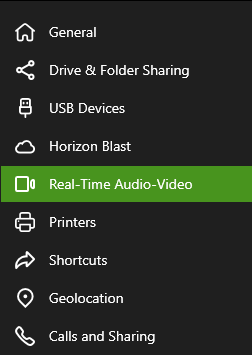
- Click Real-Time Audio-Video.
- In each drop-down, select your preferred device.
- Save your work as needed, then click the Sign Out When Finished desktop icon.
- Double-click the MET-REMOTE option in the Horizon Client window.

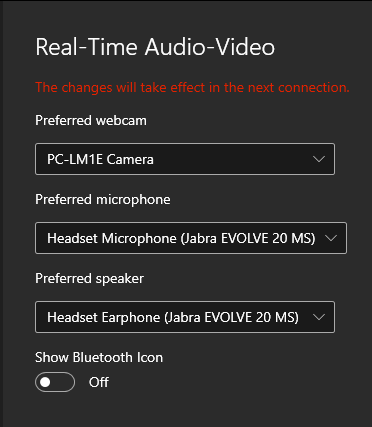
In order for the changes to take effect, we must restart our MET-REMOTE session.


When you return to Microsoft Teams or Zoom, you should now see your preferred audio & video devices in the program.