Web Print gives students the ability to print PDF and image files at COM directly through a web browser. The following file types are allowed: PDF, Microsoft Excel, Microsoft Word, Microsoft PowerPoint, Picture Files: bmp, dib, gif, jfif, jif, jpe, jpeg, jpg, png, tif, tiff

How to Web Print at COM

Go to com-print.bu.edu. Enter BU username and password and click Log in

Com Print System Login Page
Login Page for Com Print System

Click “Web Print”—located on the leftmost side of the screen. Then click the button labeled “Submit a Job”
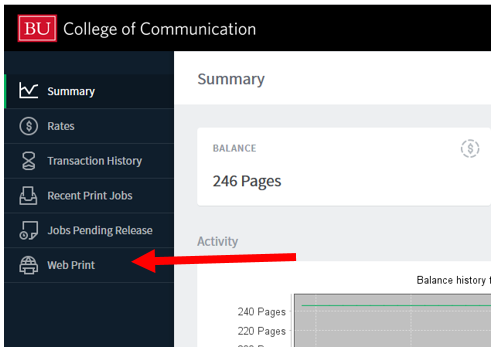
WebPrint Portal Image with an arrow pointing to the bottom left menu item: “Web Print"
Web Print page with a red arrow pointing to a green button labeled “Submit a Job"

Select which printer or room you want to send your document to and click the “Print Options and Account Selection” button.

Web Print Settings Page with two red arrows. The first is pointing at the printer device selection sorted according to their location in COM (i.e. Classroom B29) The second arrow is pointing at a button labeled “ Print Options and Account Selection.

The next screen allows you to enter the desired amount of copies, after which you can upload the file you want to print by clicking the “Upload from Computer” button. Then, select “Upload and Complete” to send the job to the printer.

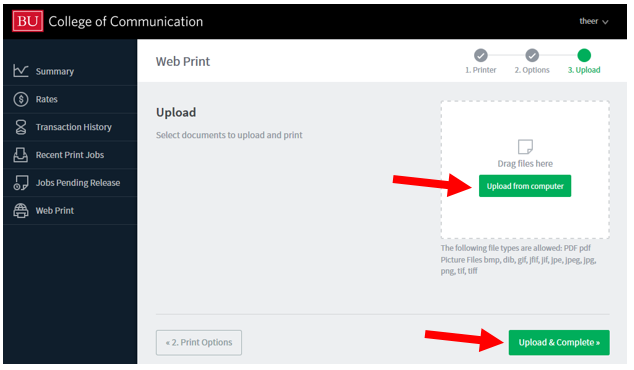
2nd Web Print Settings Page. One red arrow points to a box labeled “Copies” where the user can enter a number. The second arrow is pointing to a button labeled “Upload Documents"
Final Web Print Settings Page. Its first button is labeled “Upload from Computer” and the second is “Upload and Complete.” Upon selecting that button the print job will be sent to the printer selected on an earlier page.